
WARP セッション
Cloudflare Zero Trust は、従来の VPN がグローバル設定として扱うのとは異なり、アプリケーションごとに WARP クライアントの再認証を強制します。WARP セッションのタイムアウトを Access アプリケーション や Gateway ポリシー の一部として構成できます。
When a user goes to a protected application or website, Cloudflare checks their WARP session duration against the configured session timeout. If the session has expired, the user will be prompted to re-authenticate with the identity provider (IdP) used to enroll in the WARP client.
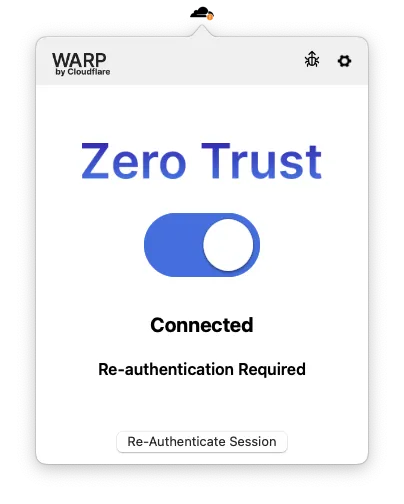
A user’s WARP session duration resets to zero whenever they re-authenticate with the IdP, regardless of what triggered the authentication event.
トラフィックが WARP を通じて IdP および <your-team-name>.cloudflareaccess.com に到達できることを確認してください。
You can enforce WARP session timeouts on any Gateway Network and HTTP policy that has an Allow action. If you do not specify a session timeout, the WARP session will be unlimited by default.
Session timeouts have no impact on Gateway DNS policies. DNS policies remain active even when a user needs to re-authenticate.
To configure a session timeout for a Gateway policy:
- In Zero Trust ↗, go to either Gateway > Firewall Policies. Choose either Network or HTTP.
- Add a policy and select the Allow action. Alternatively, choose any existing Allow policy.
- Under Step 4 - Configure policy settings, select Edit next to Enforce WARP client session duration.
- Enter a session expiration time in
1h30m0sformat and save. - Save the policy.
Session checks are now enabled for the application protected by this policy. Users can continue to reach applications outside of the policy definition.
ユーザーが WARP セッションを使用して Access アプリケーションにログインできるようにすることができます。WARP 認証は、Allow または Block ポリシーで保護された Access アプリケーションのみサポートされています。
Access アプリケーションの WARP セッションを構成するには:
- Zero Trust ↗ に移動し、Settings > WARP Client を選択します。
- Device enrollment permissions で Manage を選択します。
- Authentication タブに移動し、WARP authentication identity を有効にします。
- Session duration の下で、セッションタイムアウト値を選択します。このタイムアウトは、WARP 認証が有効なすべての Access アプリケーションに適用されます。
- (オプション) すべての既存および新しいアプリケーションに対してデフォルトで WARP 認証を有効にするには、Apply to all Access applications を選択します。Access アプリケーションを 作成または変更する際に、このデフォルト設定をアプリケーションごとに上書きできます。
- Save を選択します。
ユーザーは WARP で一度認証を行うと、設定された期間中に Access アプリケーションにアクセスできるようになります。ユーザーが WARP に登録するために使用した IdP で再認証すると、セッションタイマーがリセットされます。
ユーザーが IdP とのアクティブなブラウザセッションを持っている場合、WARP は既存のブラウザクッキーを使用して再認証を行い、ユーザーは再度資格情報を入力するように求められません。この動作を上書きして、IdP で明示的なユーザーインタラクションを要求することができます。
- デバイスごとに1人のユーザーのみ — デバイスがすでにユーザー A に登録されている場合、ユーザー B は再認証フローを通じてそのデバイスにログインできません。デバイスの登録を別のユーザーに切り替えるには、ユーザー A がまず Zero Trust からログアウトする必要があります(Allow device to leave organizationが有効な場合)、または管理者が My Team > Devices から登録を取り消すことができます。その後、ユーザー B は適切に enroll できます。
- アクティブな接続は終了しない — SSH や RDP などのアクティブなセッションは、タイムアウト制限を超えて接続されたままになります。
- Binding Cookie はサポートされていません - WARP 認証は、Binding Cookie が有効な Access アプリケーションでは機能しません。