
有料プラン
セキュリティイベントは、セキュリティ > イベントのあなたのゾーンで利用可能です。
さらに、エンタープライズ顧客は、アカウントホーム > セキュリティセンター > セキュリティイベントにあるアカウントレベルのダッシュボードにアクセスできます。
複数のフィルターや除外を適用して、セキュリティイベントの範囲を絞り、レポートの期間を調整できます。期間、フィルター、または除外を変更すると、アクティビティログやすべてのグラフを含むページ全体に表示される分析データに影響します。
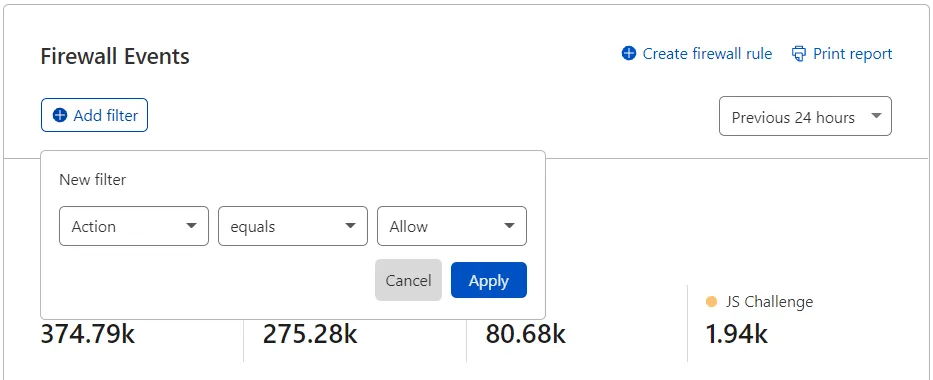
You can adjust the scope of analytics by manually entering filter conditions. Alternatively, select Filter or Exclude to filter by a field value. These buttons appear when you hover the analytics data legend.
To manually add a filter:
- Under Security Events, select Add filter.
- Select a field, an operator, and a value. For example, to filter events by IP address, select IP for Action, select equals for the operator, and enter the IP address.
- Select Apply.
Take the following into account when entering filter values:
- Do not add quotes around values.
- Do not enter the
ASprefix when entering ASN numbers. For example, enter1423instead ofAS1423. - Wildcards are not supported.
To adjust report duration, select the desired duration from the dropdown in Security Events.
The available report duration values depend on your Cloudflare plan. Refer to Availability for details.
To create a custom rule based on your current filters and exclusions, select Create custom rule in Security Events.
イベントの概要セクションでは、選択した期間中のトラフィックに関するセキュリティイベントの数を、選択した次元(例えば、アクション、ホスト、国、またはASN)に基づいてグループ化して提供します。
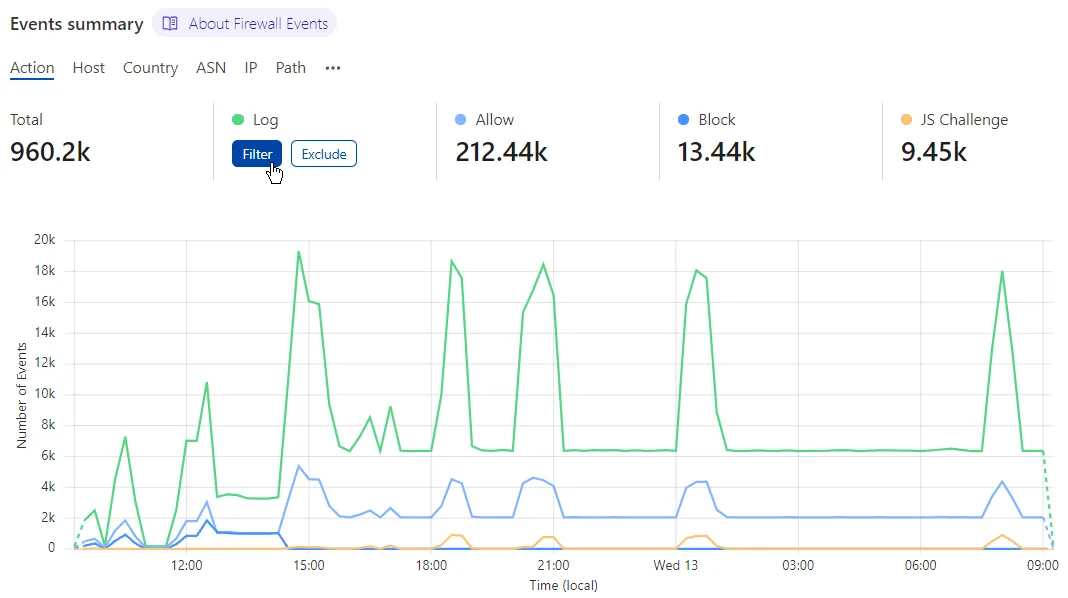
凡例にカーソルを合わせたときにフィルターまたは除外を選択することで、表示データを調整できます。
サービス別のイベントセクションでは、Cloudflareのセキュリティ機能ごとのアクティビティ(例えば、管理ルールやAPIシールド)をリストします。
凡例にカーソルを合わせたときにフィルターまたは除外を選択するか、対応するグラフバーを選択することで、セキュリティイベントの範囲を表示されているサービスの1つに調整できます。
ソース別のトップイベントでは、セキュリティ機能によってフラグが立てられたまたはアクションが取られたトラフィックの詳細(例えば、IPアドレス、ユーザーエージェント、パス、および国)を見つけることができます。
値にカーソルを合わせたときにフィルターまたは除外を選択することで、セキュリティイベントの範囲をリストされたソース値の1つに調整できます。
The Activity log summarizes security events by date to show the action taken and the applied Cloudflare security feature.
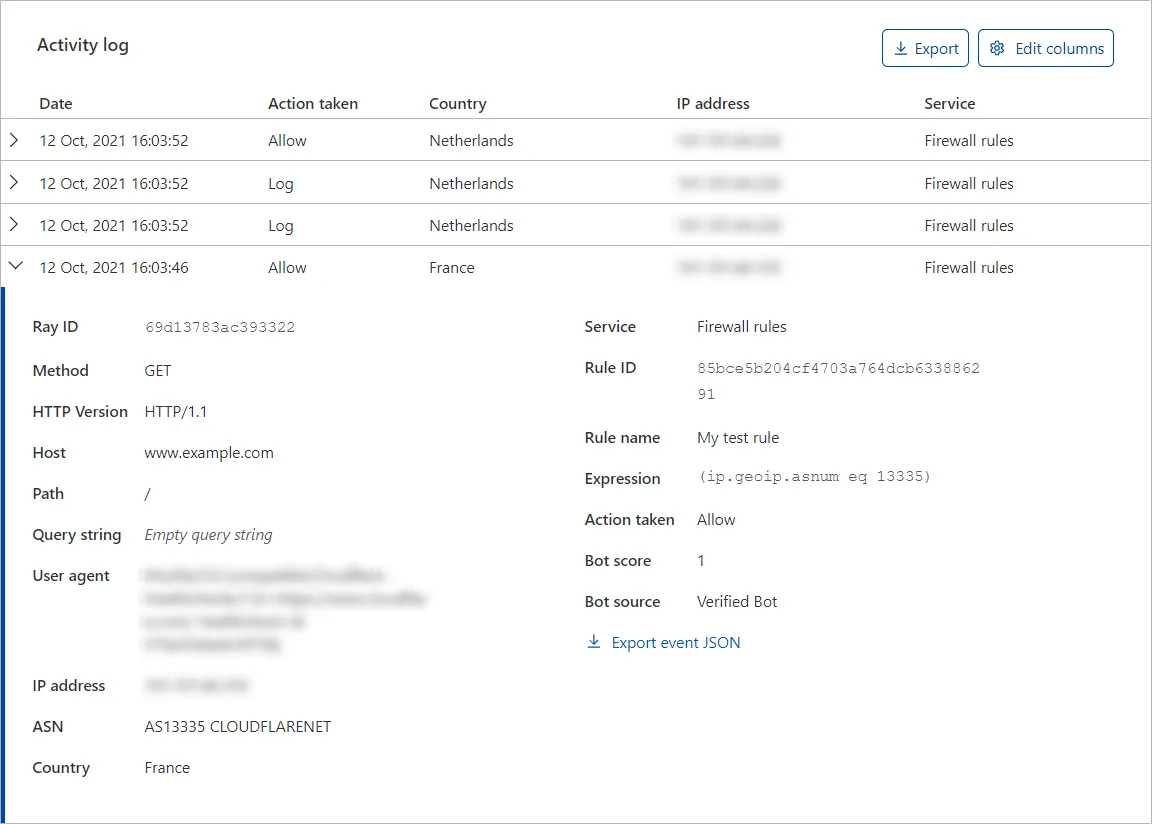
Security events are shown by individual event rather than by request. For example, if a single request triggers three different security features, the security events will show three individual events in the Activity log.
Expand each event to check its details, and define filters and exclusions based on the event’s field values. Select the Filter or Exclude button when hovering a field to add the field value to the filters or exclusions list of the displayed analytics. To download the event data in JSON format, select Export event JSON.
To configure the columns displayed in the Activity log, select Edit columns. This gives you flexibility depending on the type of analysis that you need to perform.
For example, if you are diagnosing a bot-related issue, you may want to display the User agent and the Country columns. On the other hand, if you are trying to identify a DDoS attack, you may want to display the IP address, ASN, and Path columns.
For details on most actions that appear in the Activity Log, refer to Actions.
Besides the actions you can select when configuring rules in Cloudflare security products, you may also find events with the following associated actions:
- Connection Close
- Force Connection Close
For details on these actions, refer to HTTP DDoS Attack Protection parameters.
The Managed Challenge (Recommended) action that may appear in the Activity Log is available in the following security features and products: WAF custom rules, rate limiting rules, Bot Fight Mode, IP Access rules, User Agent Blocking rules, and firewall rules (deprecated).
You can export a set of up to 500 raw events from the Activity log in JSON format. Export event data to combine and analyze Cloudflare data with your own stored in a separate system or database, such as a SIEM system. The data you export will reflect any filters you have applied.
To export the displayed events (up to 500), select Export in the Activity log.
When you add a filter and specify a report duration (time window) in Security Events, the Cloudflare dashboard URL changes to reflect the parameters you configured. You can share that URL with other users so that they can analyze the same information that you see.
For example, after adding a filter for Action equals Managed Challenge and setting the report duration to 72 hours, the URL should look like the following:
https://dash.cloudflare.com/{account_id}/example.net/security/events?action=managed_challenge&time-window=4320
セキュリティイベントダッシュボードからスナップショットレポートを印刷またはダウンロードするには、セキュリティイベントでレポートを印刷を選択します。ウェブブラウザの印刷インターフェースが、PDFレポートの印刷またはダウンロードのオプションを表示します。
生成されたレポートは、適用されたすべてのフィルターを反映します。