
ゾーンのダッシュボードでのマネージドルールセットのデプロイ
Security > WAF > Managed rules でゾーンのためのマネージドルールセットをデプロイおよび構成できます。
アカウント内の複数のエンタープライズドメインに対してマネージドルールセットをデプロイするには、アカウントのダッシュボードでマネージドルールセットをデプロイするを参照してください。
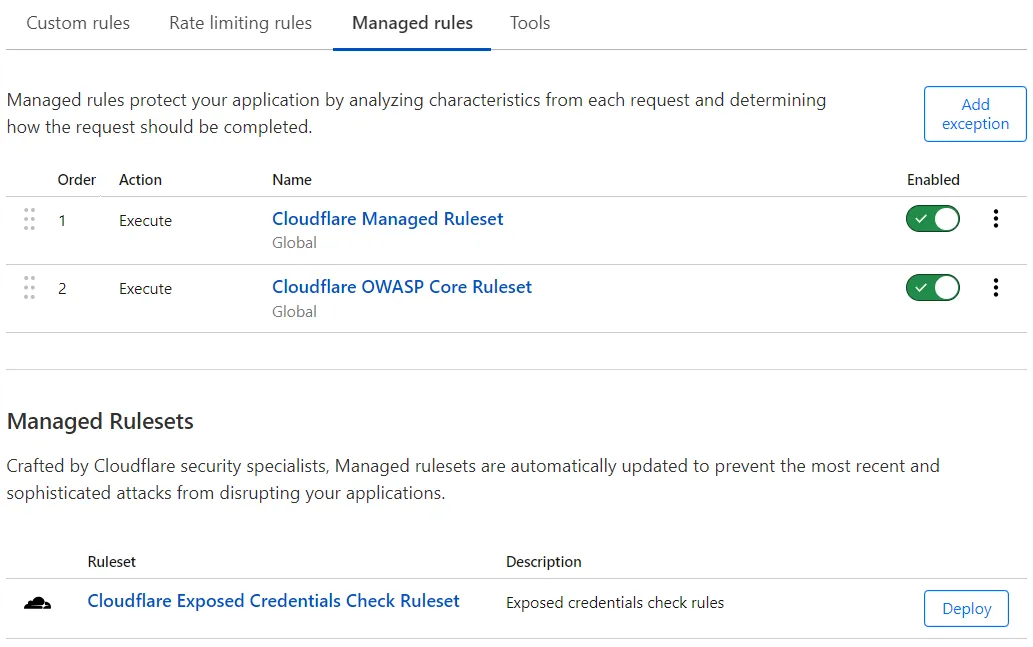
デフォルトの構成でマネージドルールセットをデプロイするには:
-
Cloudflareダッシュボード ↗にログインし、アカウントとドメインを選択します。
-
Security > WAF > Managed rules に移動します。
-
Managed Rulesets の下で、デプロイしたいマネージドルールセットの横にある Deploy を選択します。
この操作により、現在のゾーンに対してマネージドルールセットがデプロイされ、Execute アクションを持つ新しいルールが作成されます。
マネージドルールセットの横にある Enabled トグルを選択して、オンまたはオフにします。
マネージドルールセットを構成して:
- ルールセットのルールを特定の受信リクエストのサブセットに適用するカスタムフィルター式を指定します。
- 1つ以上のルールの特定のフィールド値を定義します(たとえば、Cloudflareによって構成されたアクションとは異なるアクションを持つルールを構成する)、またはそれらのルールをオフにします。
特定の受信リクエストに対して1つ以上のルール、または全体のWAFマネージドルールセットをスキップするには、例外を追加するを参照してください。
マネージドルールセット内のすべてのルールのルールフィールド値を構成するには:
-
Cloudflareダッシュボード ↗にログインし、アカウントとドメインを選択します。
-
Security > WAF > Managed rules に移動します。
-
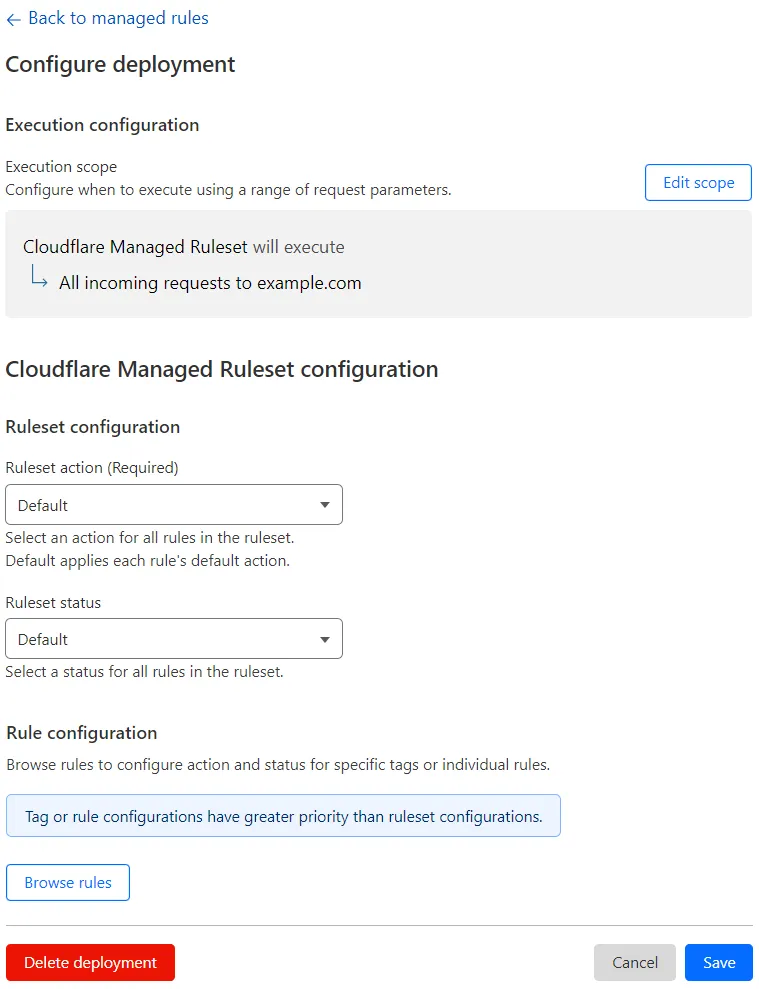
構成したいマネージドルールセットをデプロイしている Execute ルールの横にあるマネージドルールセット名を選択します。
まだマネージドルールセットをデプロイしていない場合は、Managed Rulesets の下にあるマネージドルールセット名を選択します。 -
(オプション)受信リクエストのサブセットに対してマネージドルールセットを実行するには、Edit scope を選択し、現在のルールがマネージドルールセットをデプロイする範囲を決定する式を構成するを行います。
-
ルールセット構成セクションで、ドロップダウンリストを使用してすべてのルールの設定を定義します。
たとえば、Ruleset action ドロップダウンリストからルールセット内のすべてのルールに対して実行するアクションを選択します。
-
デプロイされたマネージドルールセットを編集している場合は、Save を選択します。まだマネージドルールセットをデプロイしていない場合は、Deploy を選択してルールセットを即座にデプロイするか、Save as Draft を選択してデプロイ設定を後で保存します。
-
Log in to the Cloudflare dashboard ↗, and select your account and domain.
-
Go to Security > WAF > Managed rules.
-
If you have already deployed the managed ruleset you want to configure, select the managed ruleset name in the list of deployed managed rulesets. Alternatively, select the three dots > Edit next to the Execute rule deploying the managed ruleset.
If you have not deployed the managed ruleset, select the ruleset name under Managed Rulesets.
-
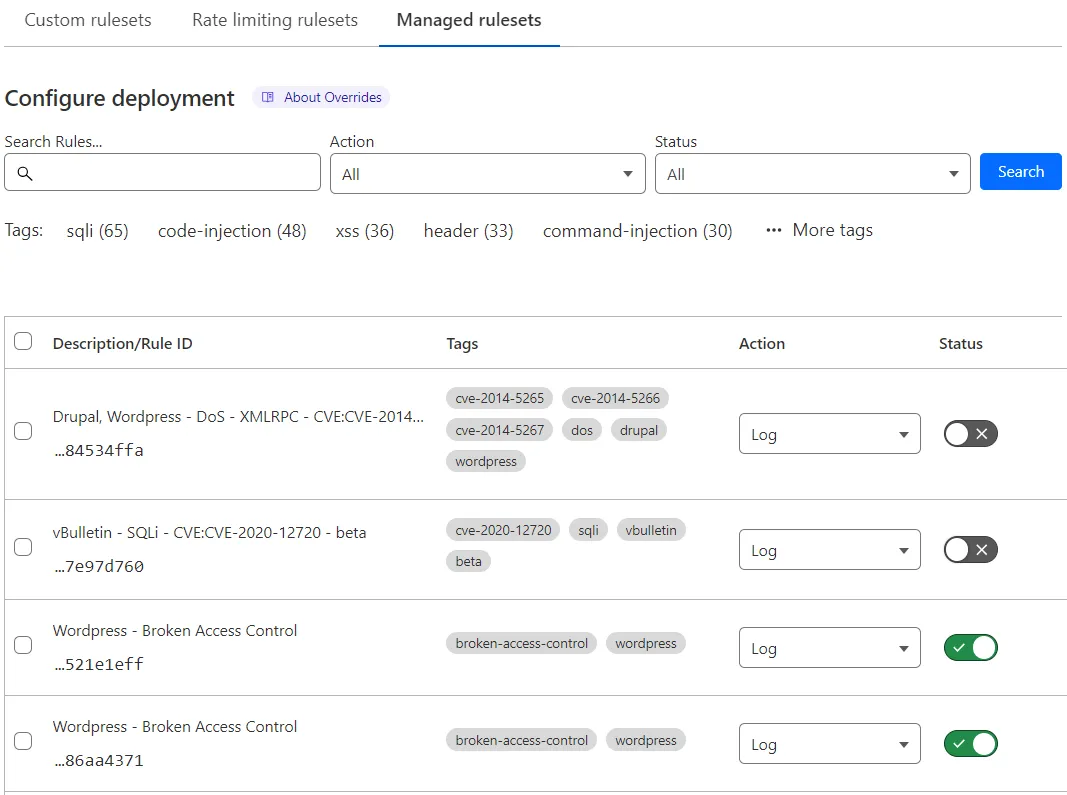
Select Browse rules.
-
Search for rules using the available filters. You can search for tags.
-
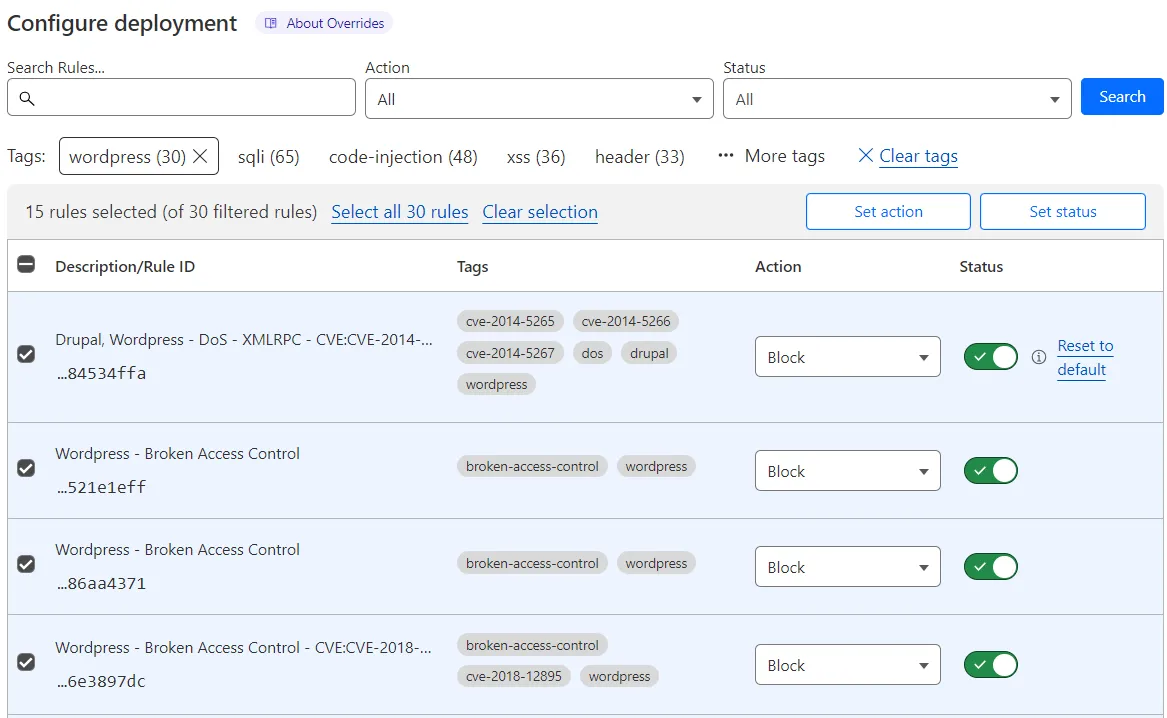
In the results list, select the checkboxes for all the rules you want to configure.
Alternatively, select a tag name under the search input to filter the rules with that tag, and then select the checkboxes for the rules you want to configure. To extend your selection to all rules with the tag across all pages, select Select all <NUMBER> rules.
-
Update one or more fields for the selected rules using the buttons displayed in the top right corner of the table.
-
Select Next.
-
If you selected a tag, a dialog appears asking you if any new rules with the selected tag should be configured with the field values you selected.
- Select Do not apply to new rules to apply your configurations to the selected rules only.
- Select Apply to new rules if you want to apply your configurations to any new rules with the select tag.
-
Select Save.
-
Log in to the Cloudflare dashboard ↗, and select your account and domain.
-
Go to Security > WAF > Managed rules.
-
If you have already deployed the managed ruleset you want to configure, select the managed ruleset name in the list of deployed managed rulesets. Alternatively, select the three dots > Edit next to the Execute rule deploying the managed ruleset.
If you have not deployed the managed ruleset, select the ruleset name under Managed Rulesets.
-
Select Browse rules.
-
Search for a rule using the available filters. You can search for tags.
-
Find the rule you want to configure in the results list.
-
In the result line for the rule you want to change, select the desired value for a field in the displayed drop-down lists. For example, select the rule action in the Action dropdown. You can also change the status of a rule using the Status toggle next to the rule.
-
Select Next, and then select Save.
マネージドルールセット内の利用可能なルールをブラウズし、個々のルールやタグを検索できます。
-
Log in to the Cloudflare dashboard ↗, and select your account and domain.
-
Go to Security > WAF > Managed rules.
-
If you have already deployed the managed ruleset you want to configure, select the managed ruleset name in the list of deployed managed rulesets. Alternatively, select the three dots > Edit next to the Execute rule deploying the managed ruleset.
If you have not deployed the managed ruleset, select the ruleset name under Managed Rulesets.
-
Select Browse rules.
- Cloudflareダッシュボード ↗にログインし、アカウントとドメインを選択します。
- Security > WAF > Managed rules に移動します。
- 削除したいルールまたは例外(スキップルール)の横にある三つの点を選択し、Delete を選択して操作を確認します。